Managing admin roles in Affinect lets you control who has access to what on your platform. From creating new admin accounts to assigning specific roles and enforcing security settings like MFA, this guide walks you through how to efficiently manage your team’s access levels.
Affinect
Navigate to Admin Settings
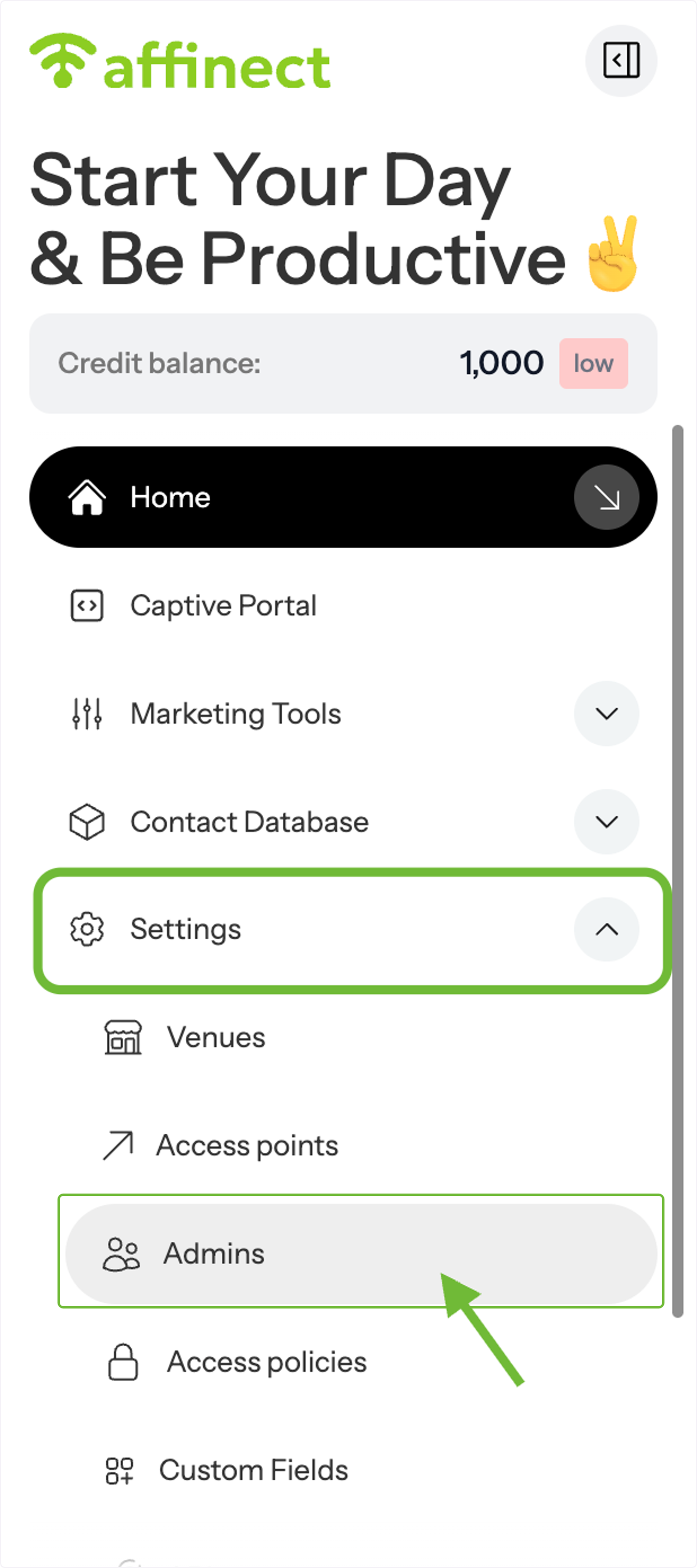
Go to Settings and select Admins from the menu to access team management.
Create a New Admin Account
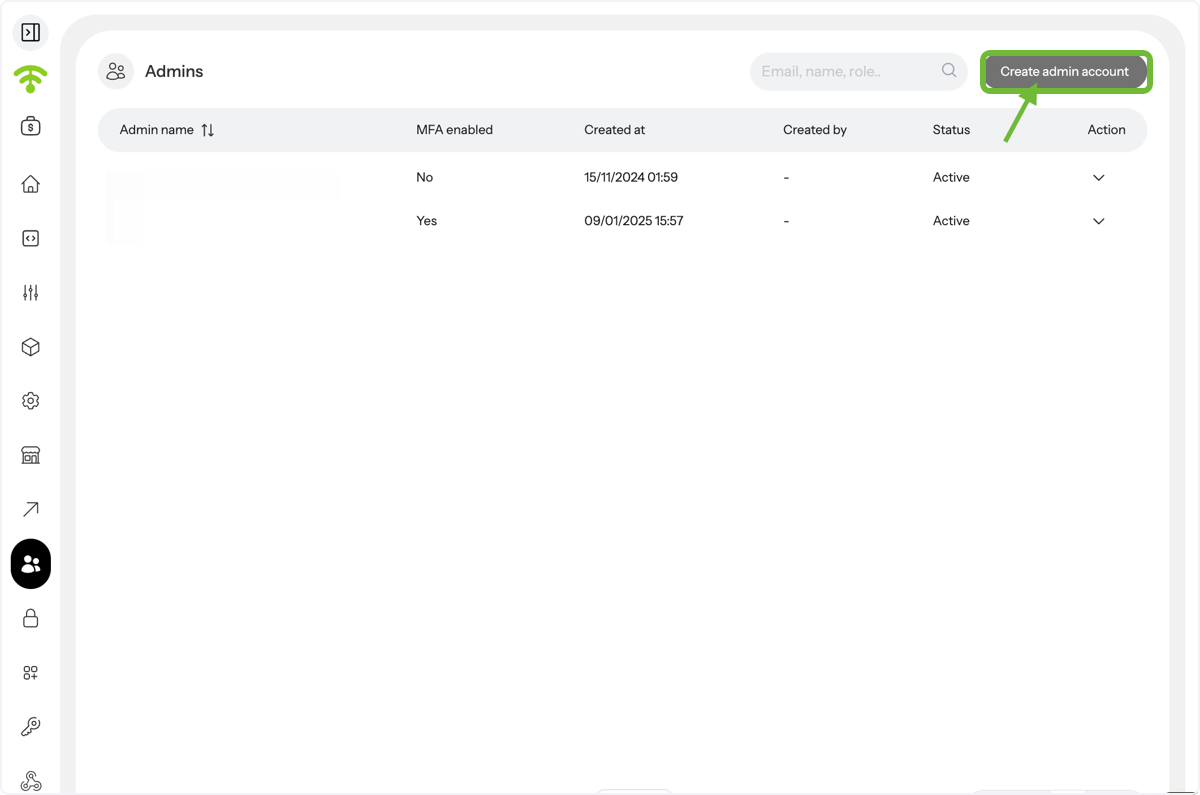
You can add a new admin by creating an account for your team member directly from this section.
Edit Existing Admin Profiles
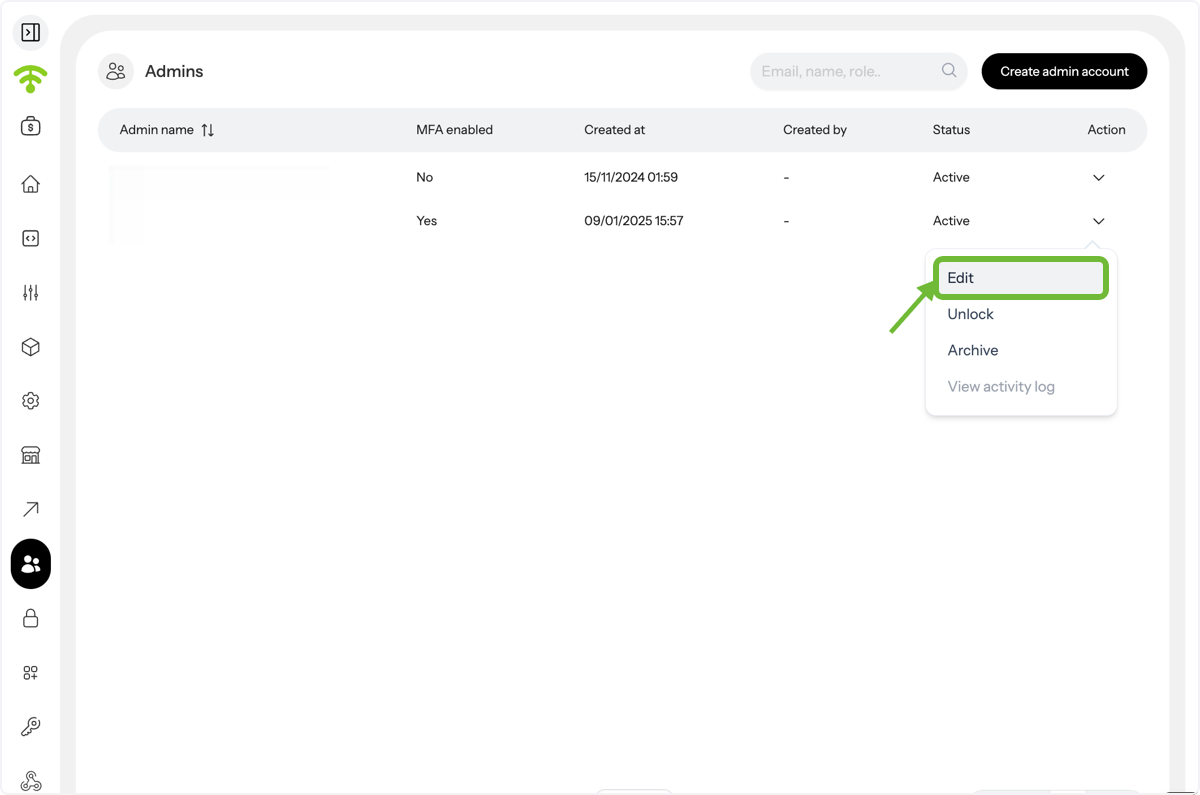
To make changes to an existing user, click on their profile and access the Edit option.
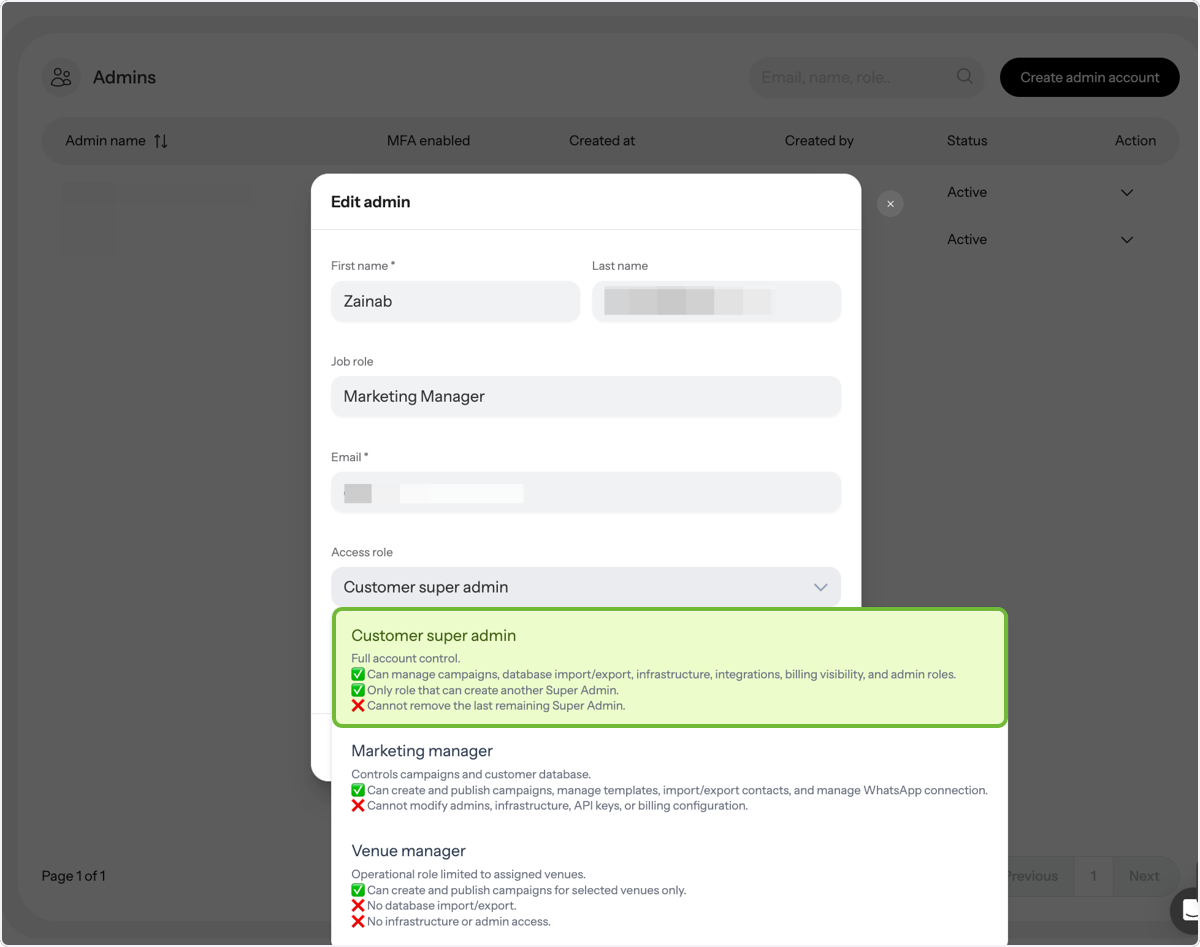
Assign Access Levels
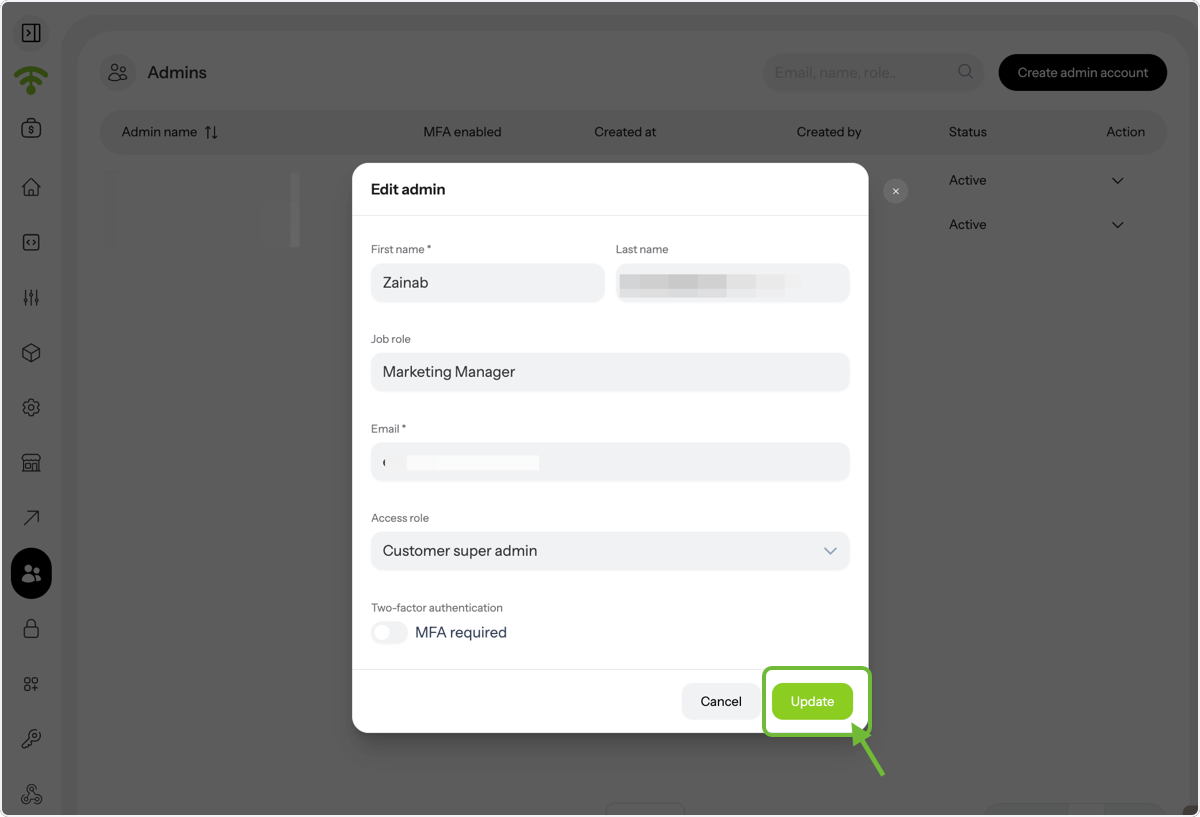
Choose the appropriate role for each team member, such as Customer Super Admin, Marketing Manager, Venue Manager, IT Manager, or Accountant, based on their responsibilities.
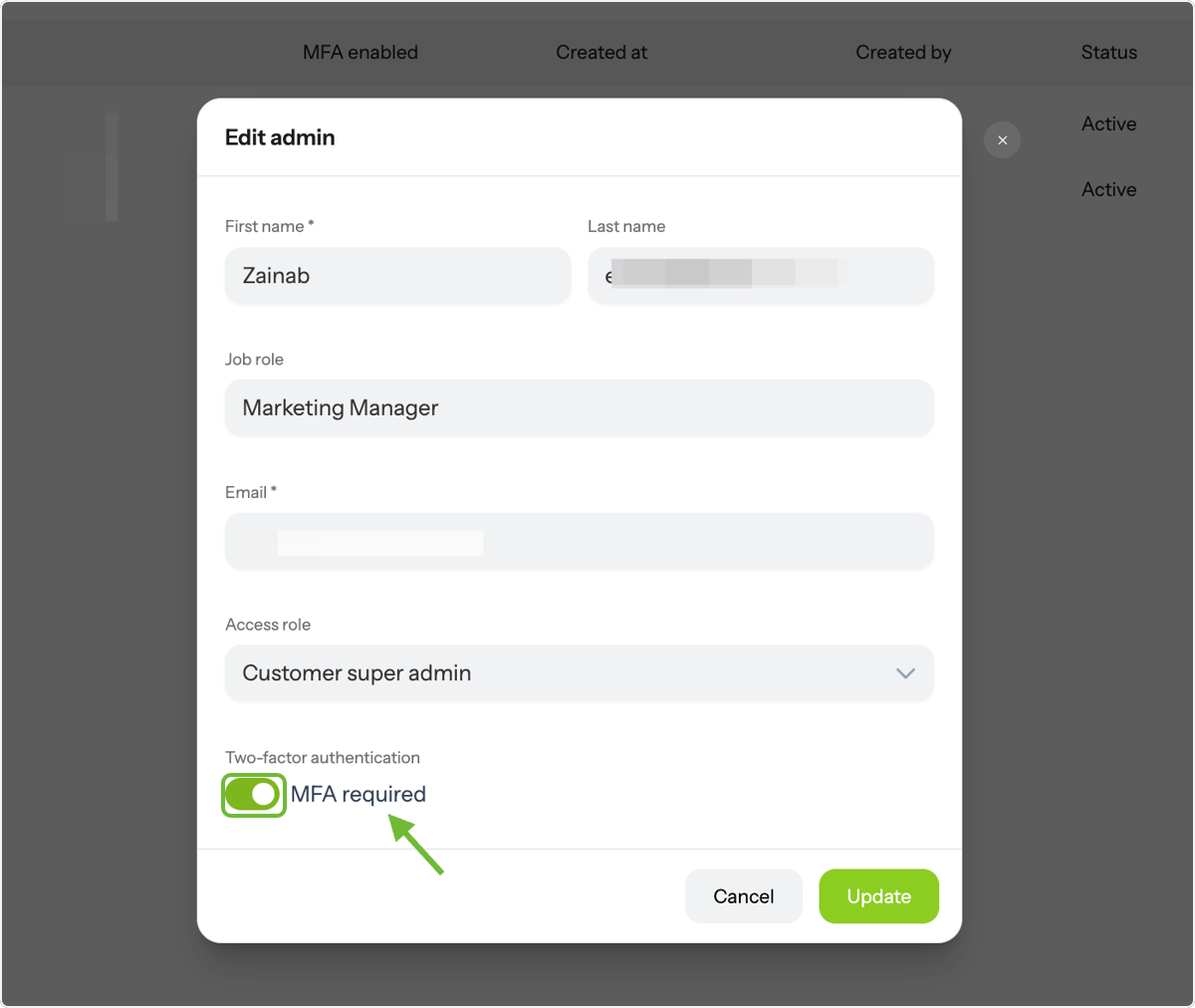
Enable MFA for Security
You can make Multi-Factor Authentication (MFA) mandatory by toggling on MFA Required for added security.
Save and Update Changes
Click Update to apply the changes. You’re all set! You now know how to assign and manage different access levels for your team in Affinect.