Affinect
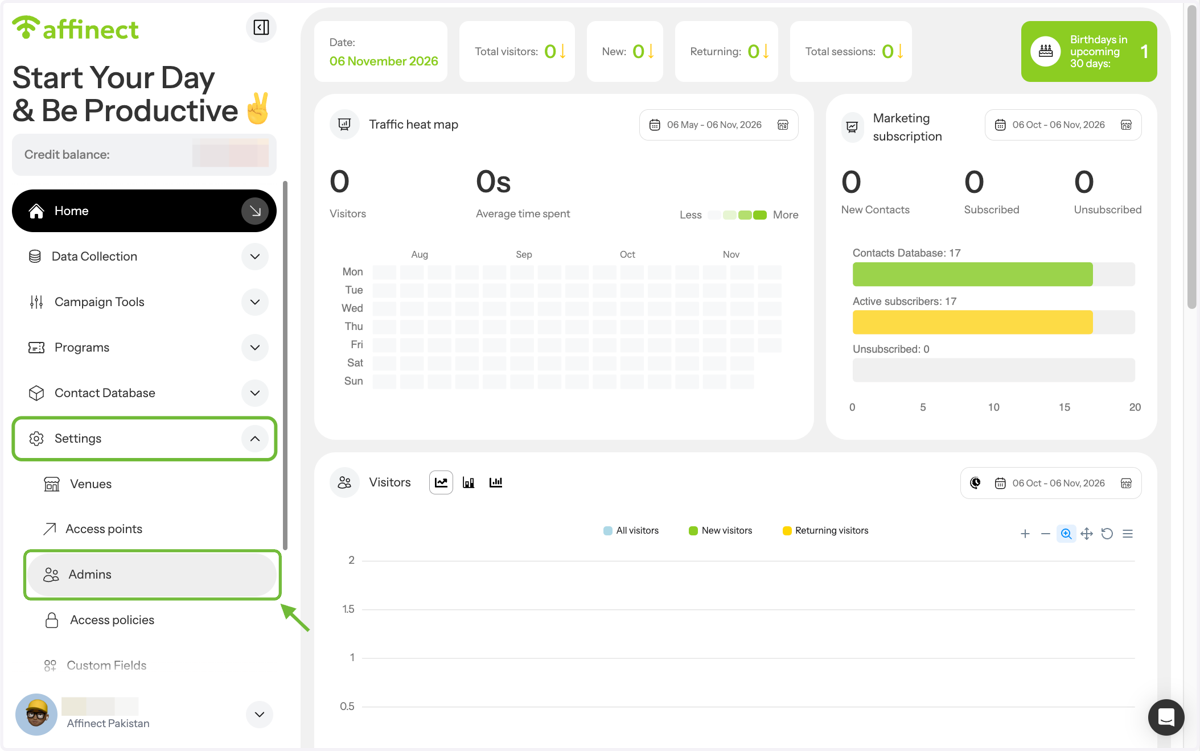
Navigate to Admin Settings
From the left-hand menu, go to Settings and select Admins to access your team's admin accounts.
Select a Team Member to Edit
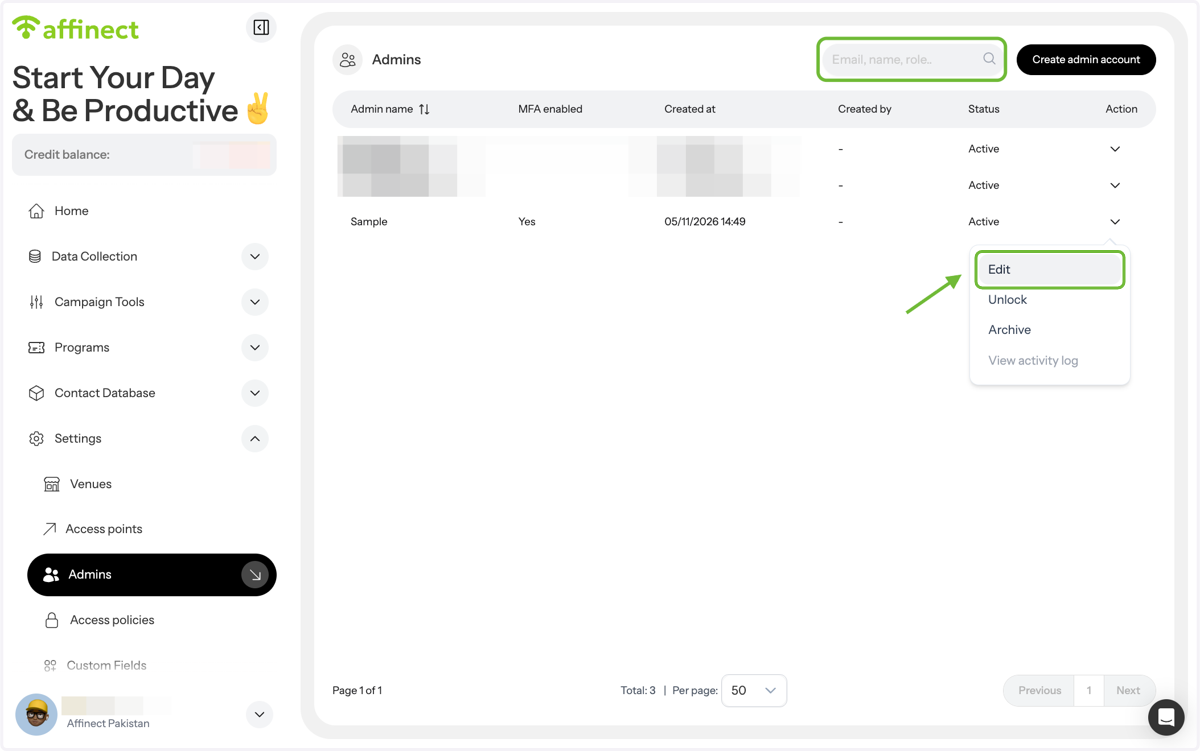
Find the team member whose MFA settings you want to manage. You can use the search bar to locate their account by name or email address.
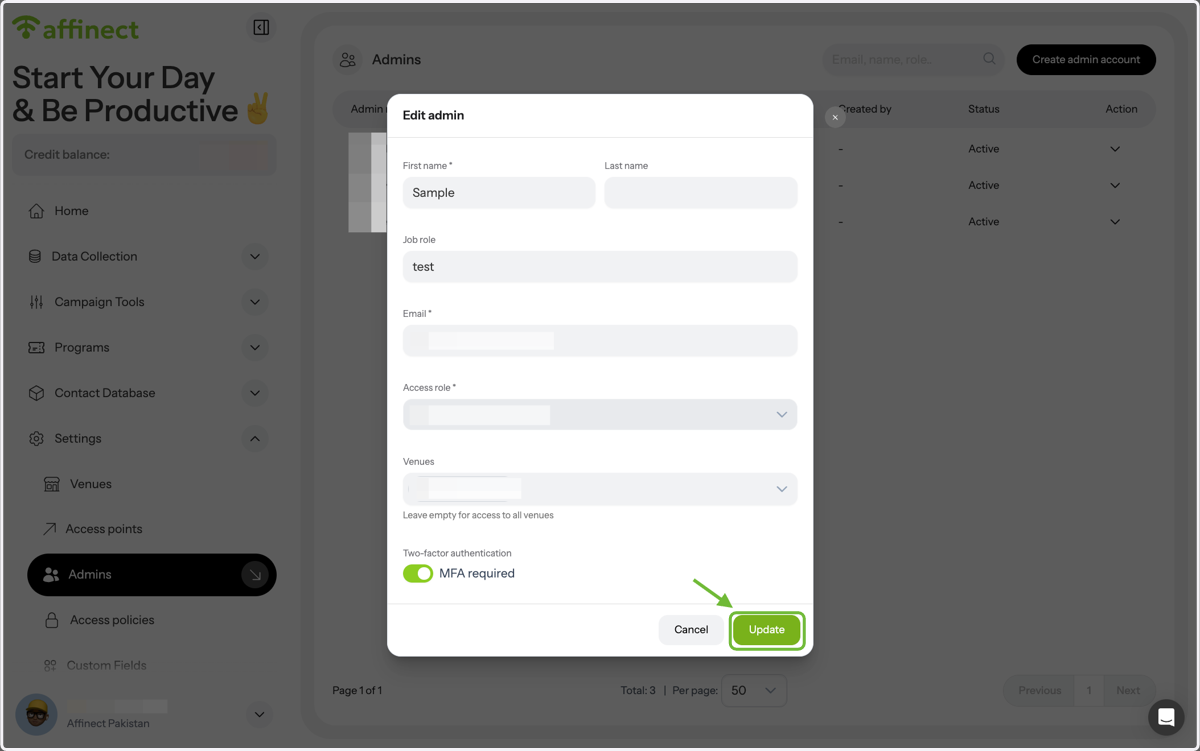
Click the dropdown arrow under Action next to their profile and select Edit.
Enable or Disable MFA Requirements
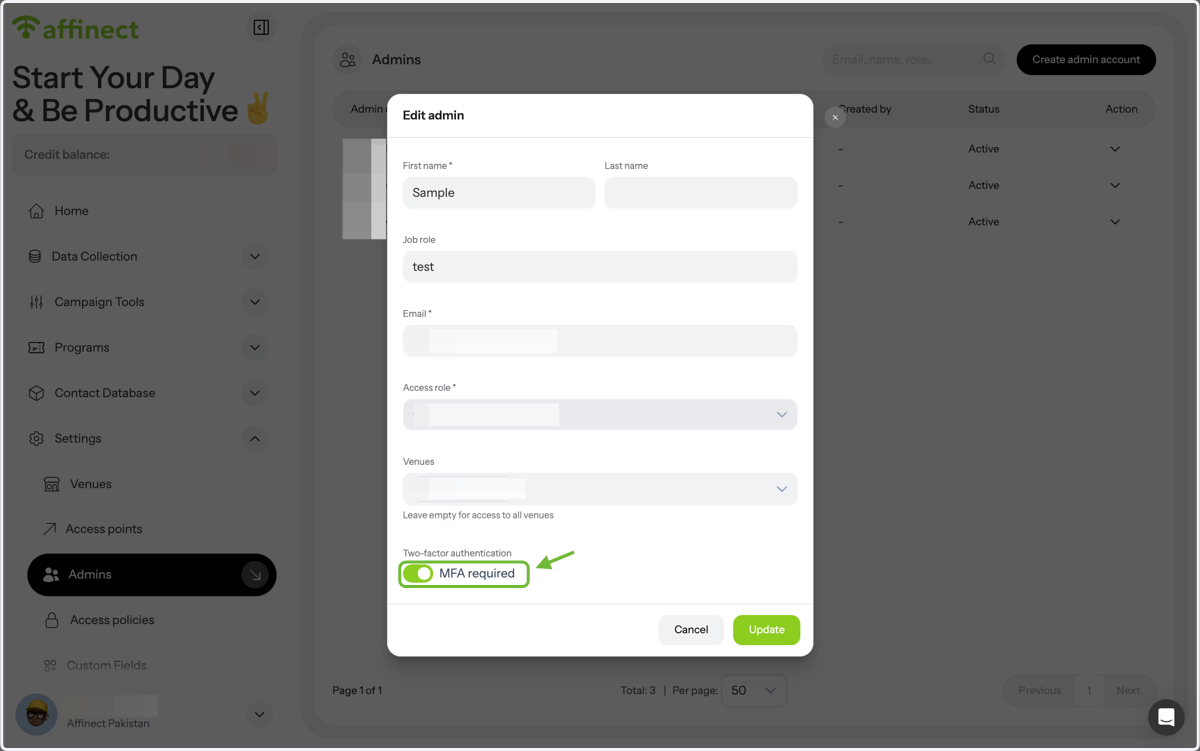
Locate the MFA Required option within the admin's settings.
Toggle it on to require Multi-Factor Authentication for the selected admin, or off to remove the requirement.
Update Settings
Click Update to save your changes.
Unlocking Admin Accounts
Locate and Select the Admin Account
An admin account may become temporarily locked after multiple incorrect password or MFA verification attempts.
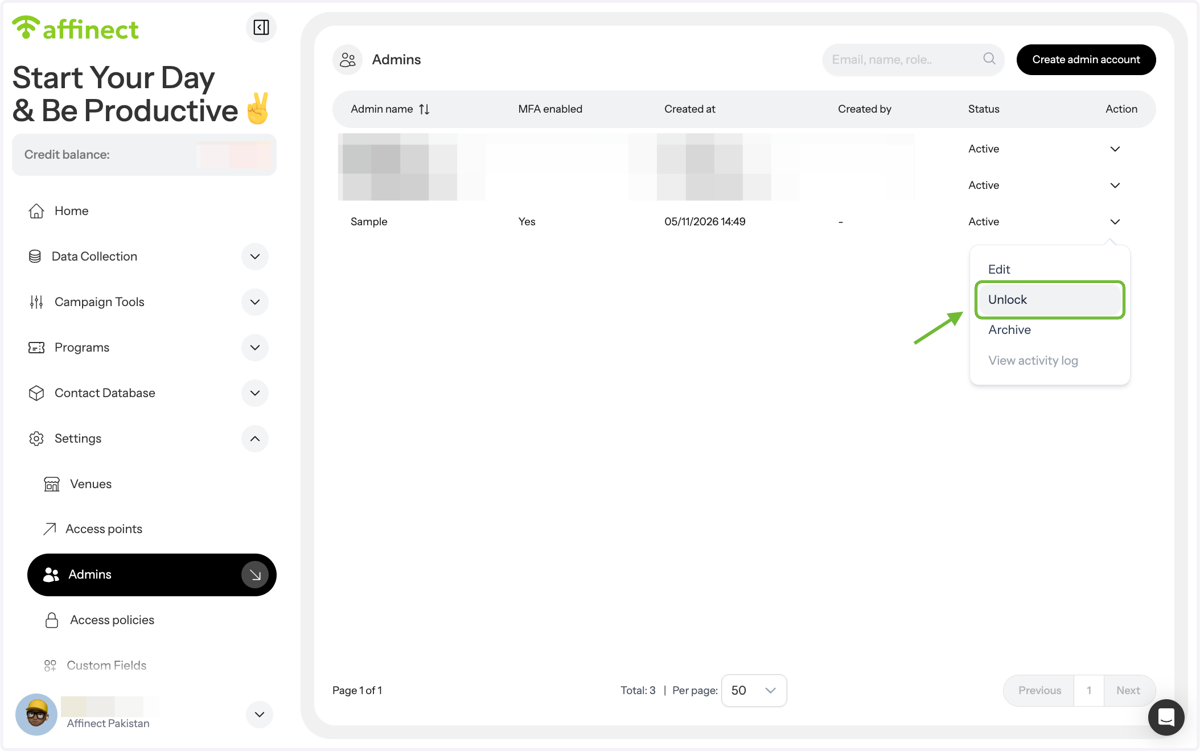
To unlock the account, go to Settings → Admins and locate the affected admin's profile.
Click the dropdown arrow under Action and select Unlock.
Confirm Account Unlocking
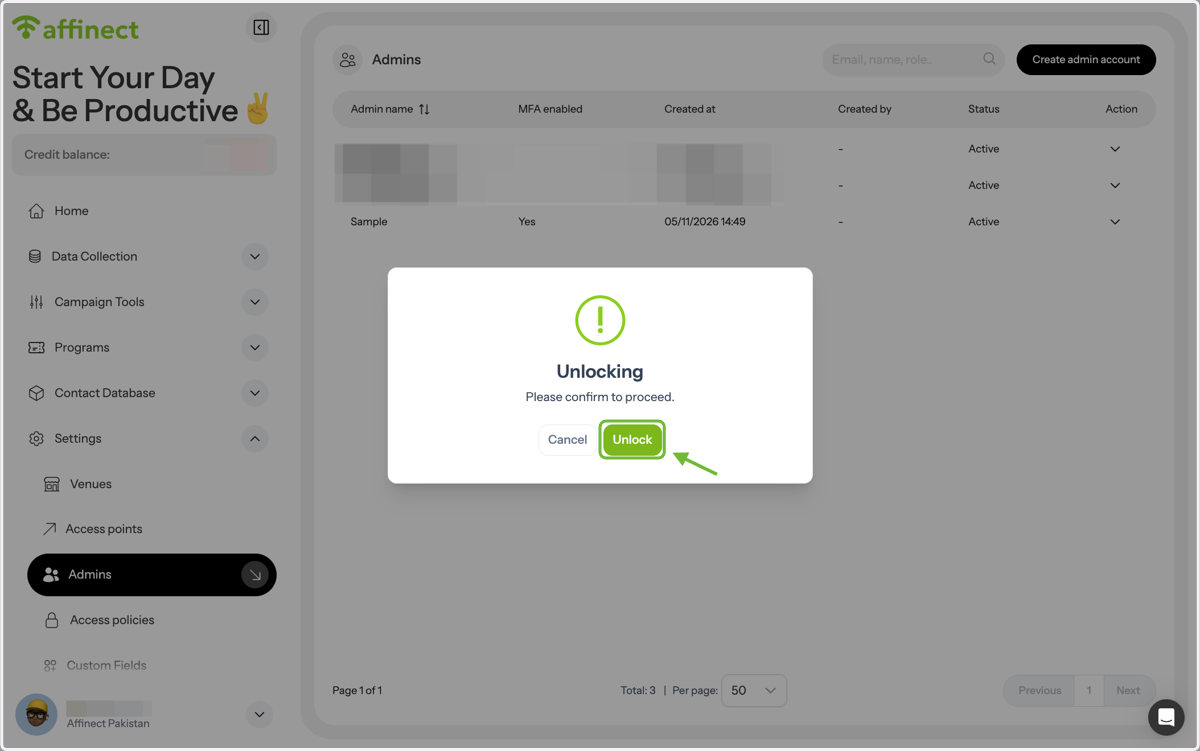
A confirmation window will appear. Click Unlock to proceed.
Once confirmed, the temporary lock is removed, allowing the admin to sign in again using the correct login credentials.
Contact Affinect Support
If you're still unable to access your account, contact Affinect support at **connect@affinect.com**.
Include your account email address, a brief description of the issue, and any relevant error messages so our team can assist you.
And that's it! You now know how to manage MFA requirements and unlock admin accounts in Affinect.