Get a quick view of your campaign’s potential impact. This guide shows you how to view your estimated ROI by entering your average spend per guest in USD. See how many guests returned after a campaign and estimate the revenue generated.
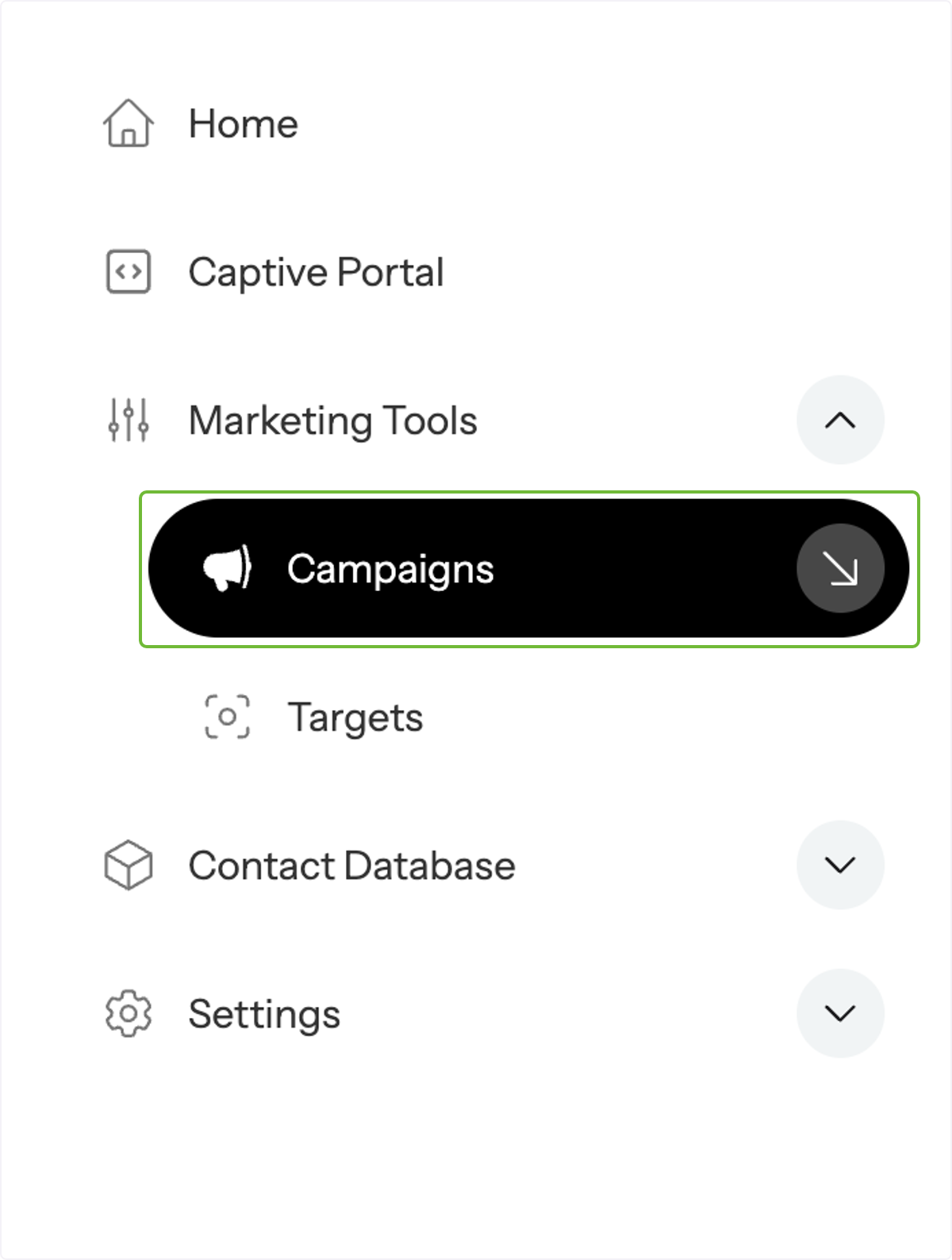
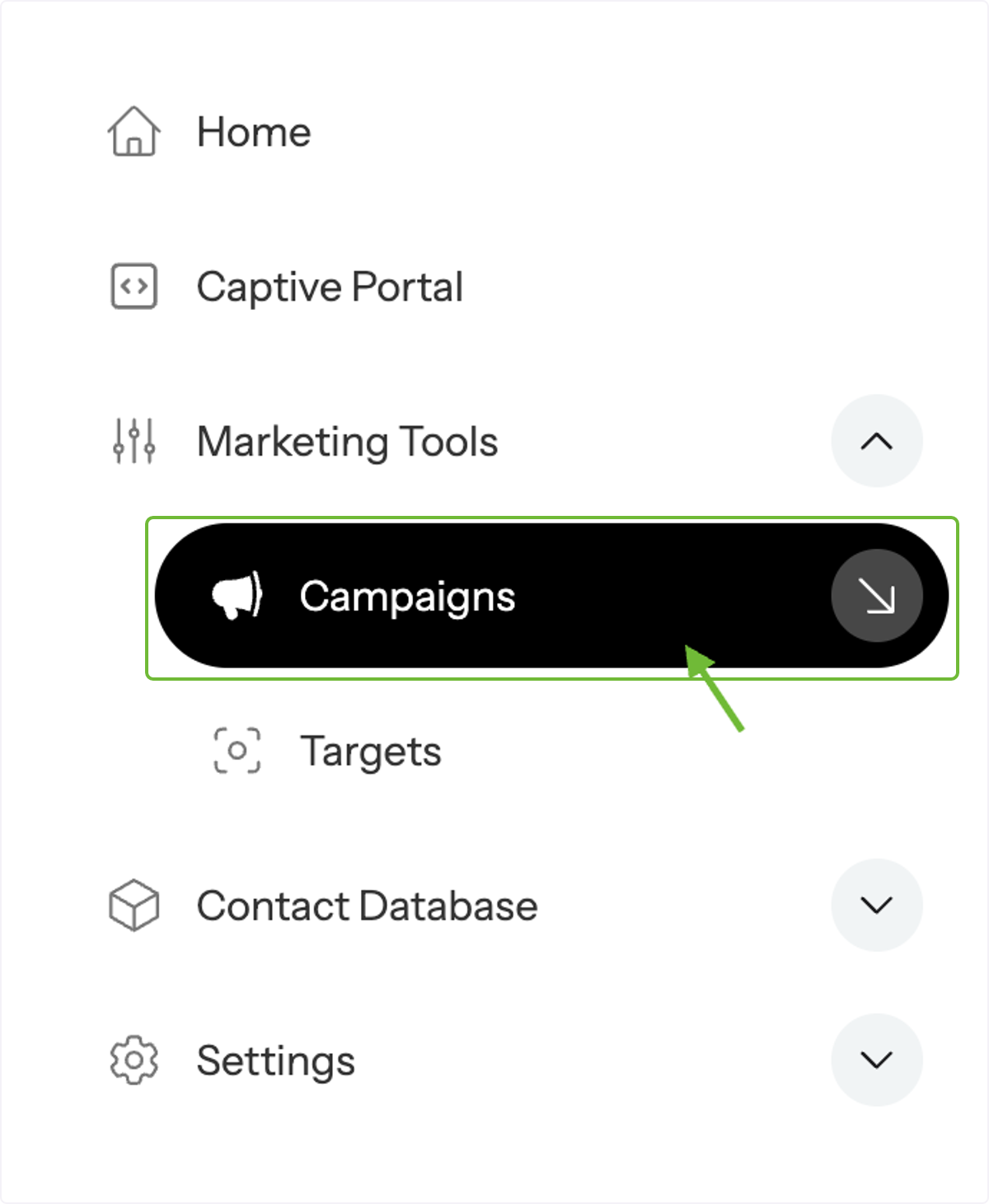
Click on Campaigns under marketing tools on left hand side
Click on Campaigns under Marketing Tools on the left-hand side of your dashboard.
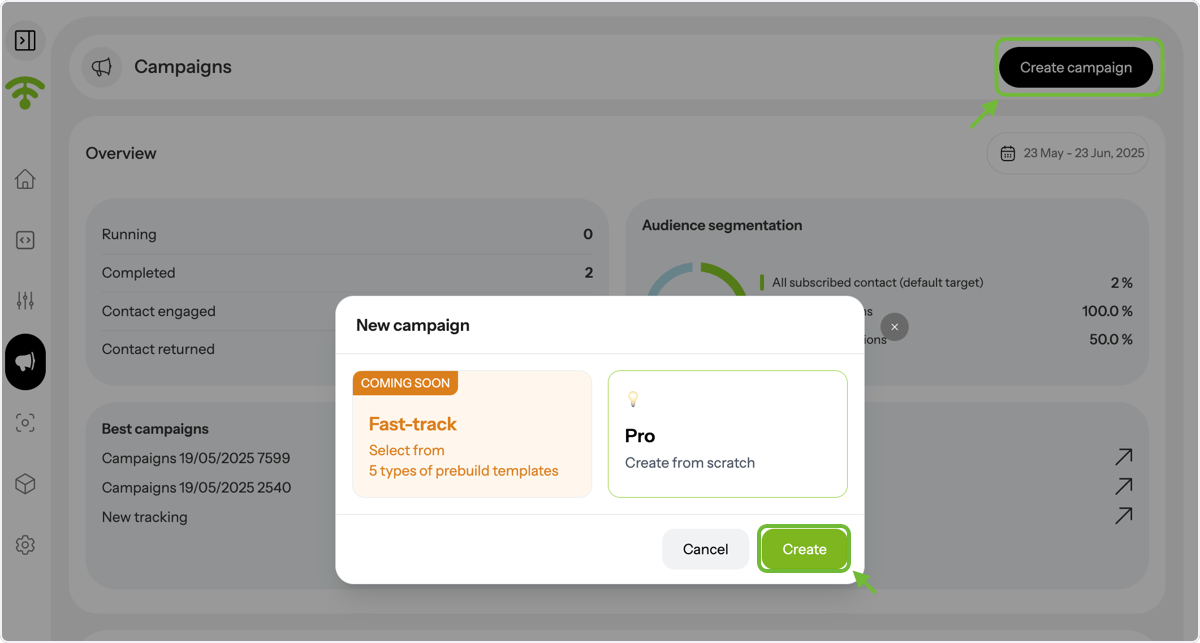
Click on Create campaign on upper rifght corner and select create from the opo up box.
Click on Create Campaign in the top-right corner and then select Create from the pop-up box.
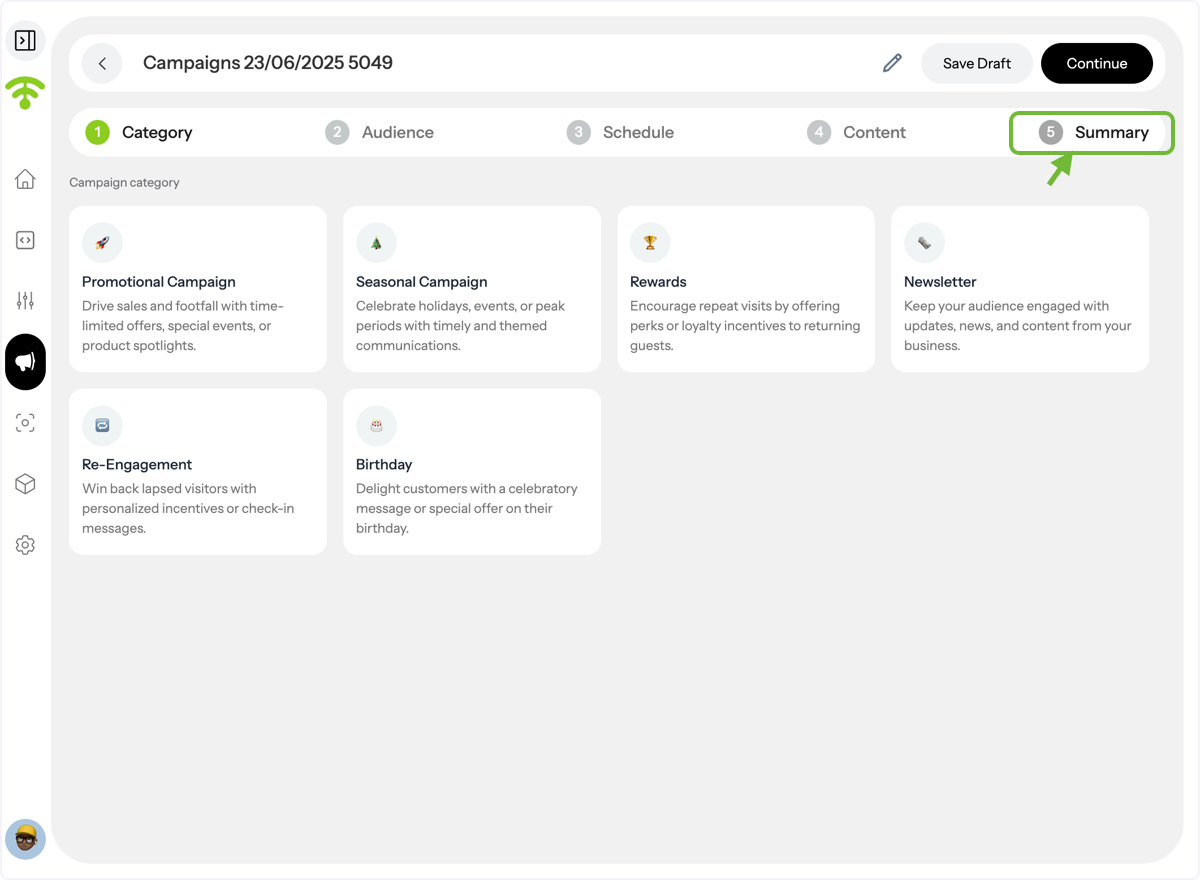
Set Up Your Campaign
Select your campaign type, choose the target audience, set the schedule, and add your content.
Need a full walkthrough? Follow this guide for step-by-step help. Then, click on Summary.
Enable Revenue Tracking
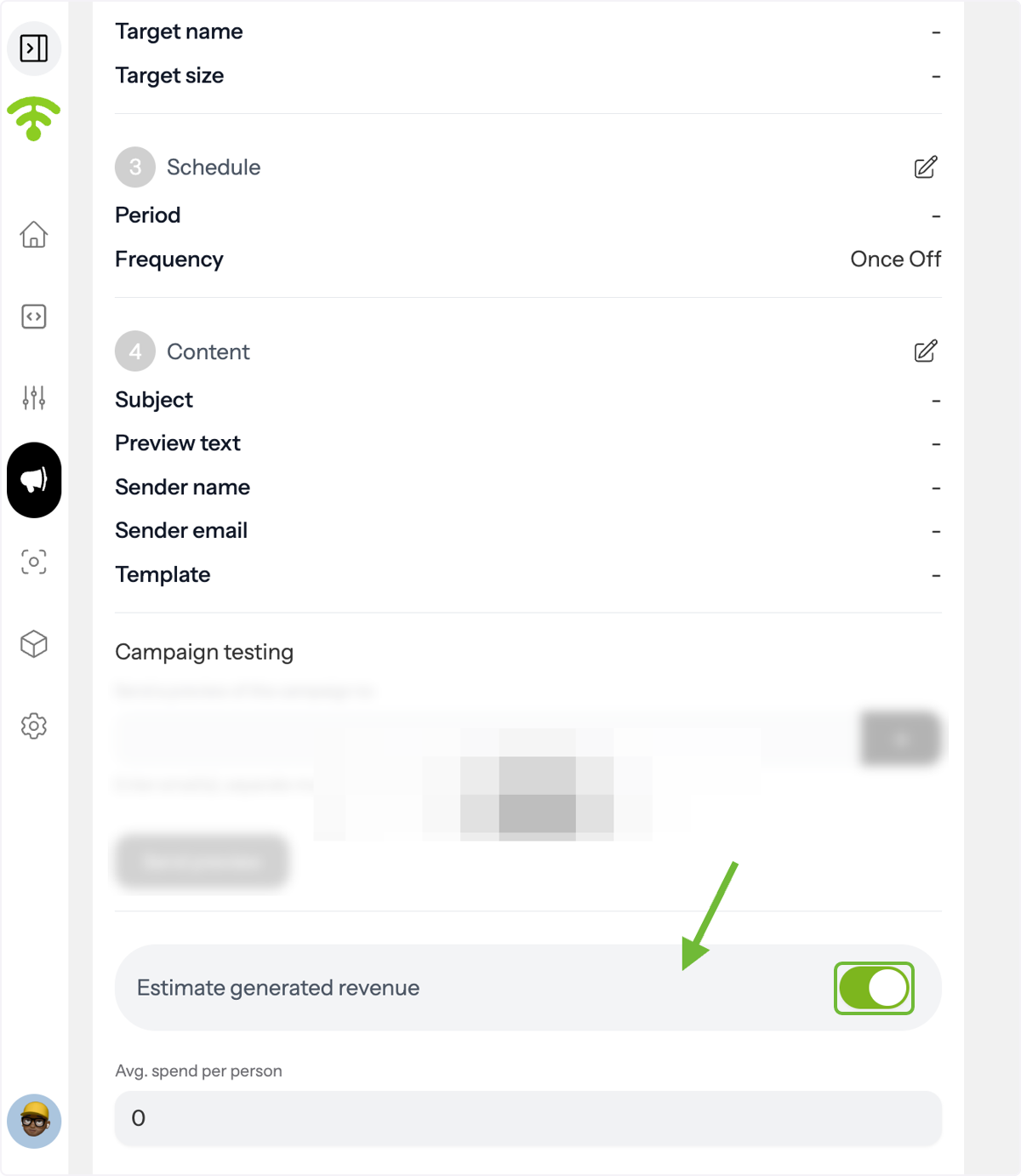
Scroll down in the Summary section at the end of your campaign setup and toggle on Estimated Generated Revenue.
Enter Average Spend
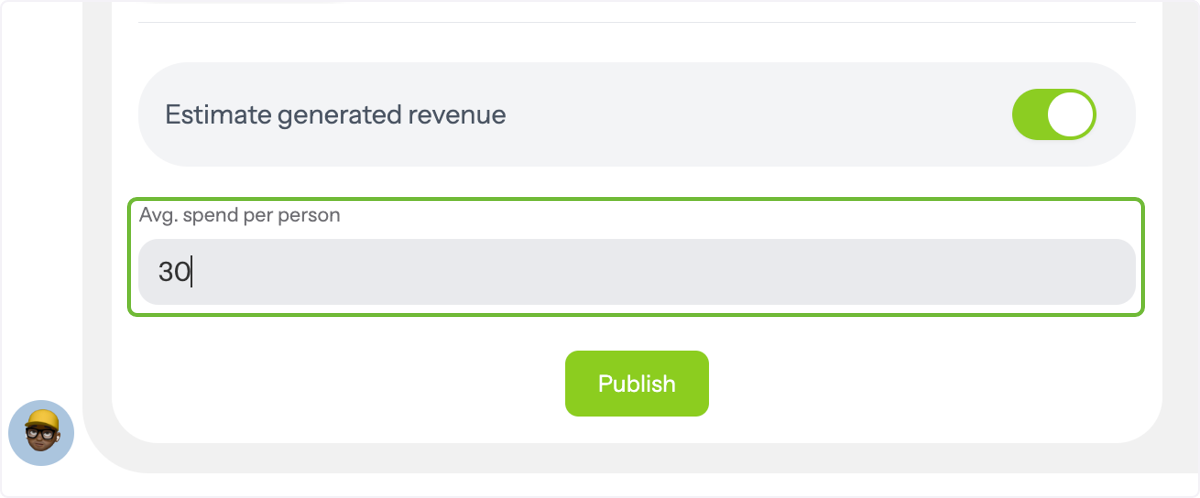
Input your average spend per customer in USD, then click Publish to launch the campaign.
Access Campaign Performance
Once your campaign is running or completed, go back to Campaigns in the dashboard to track results.
Open Campaign Report
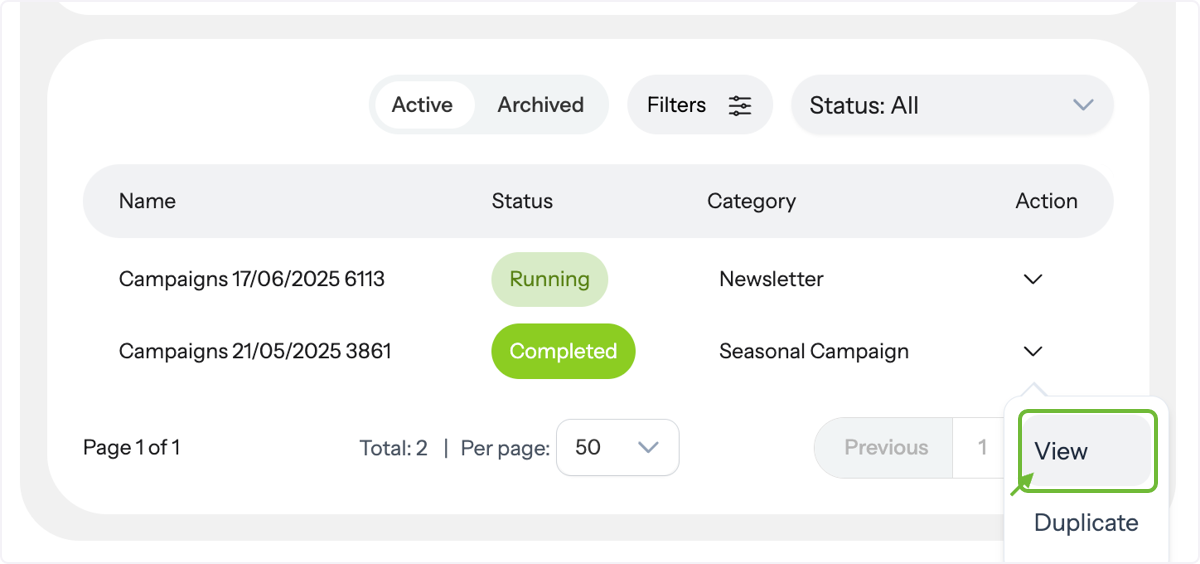
You’ll see a list of your ongoing and completed campaigns. Click View from the dropdown next to the campaign you want to analyze.
View Visitor Insights
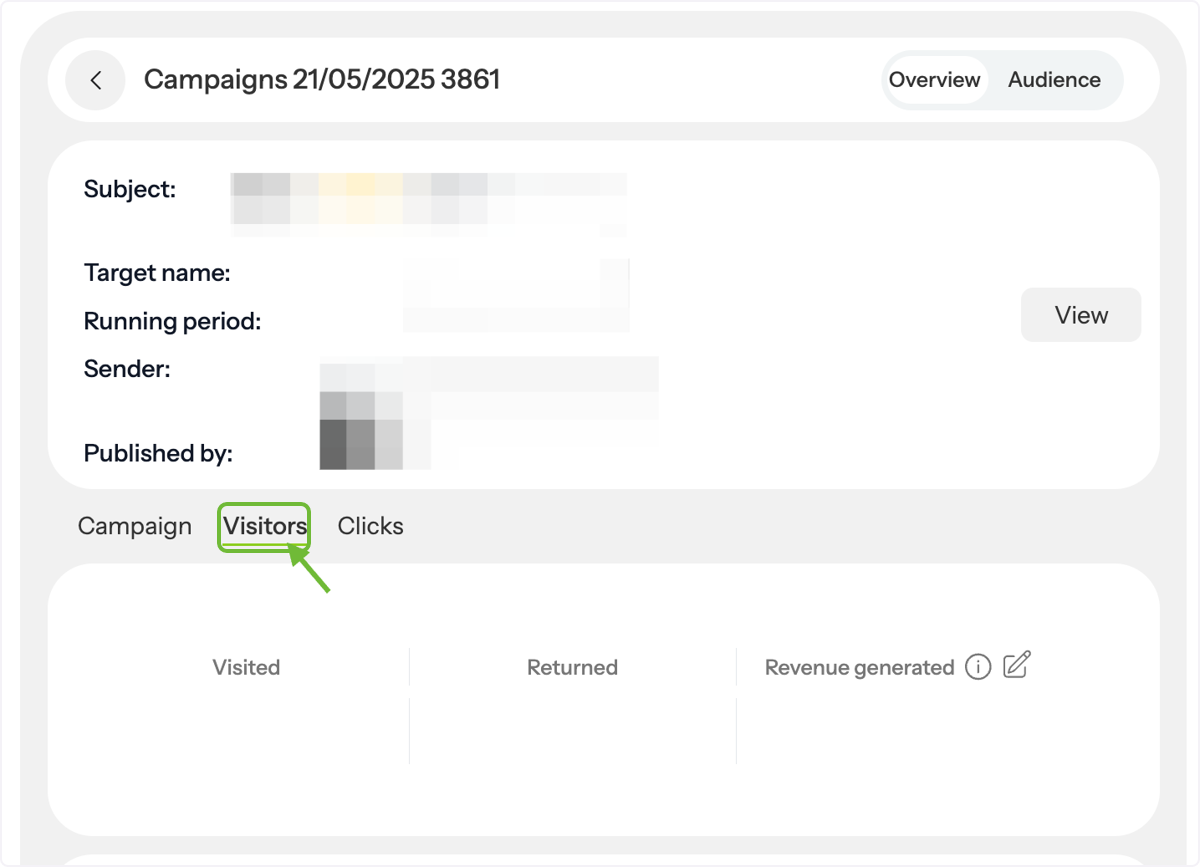
Inside the campaign stats, click on the Visitors tab next to the campaign summary.
Analyze Your ROI
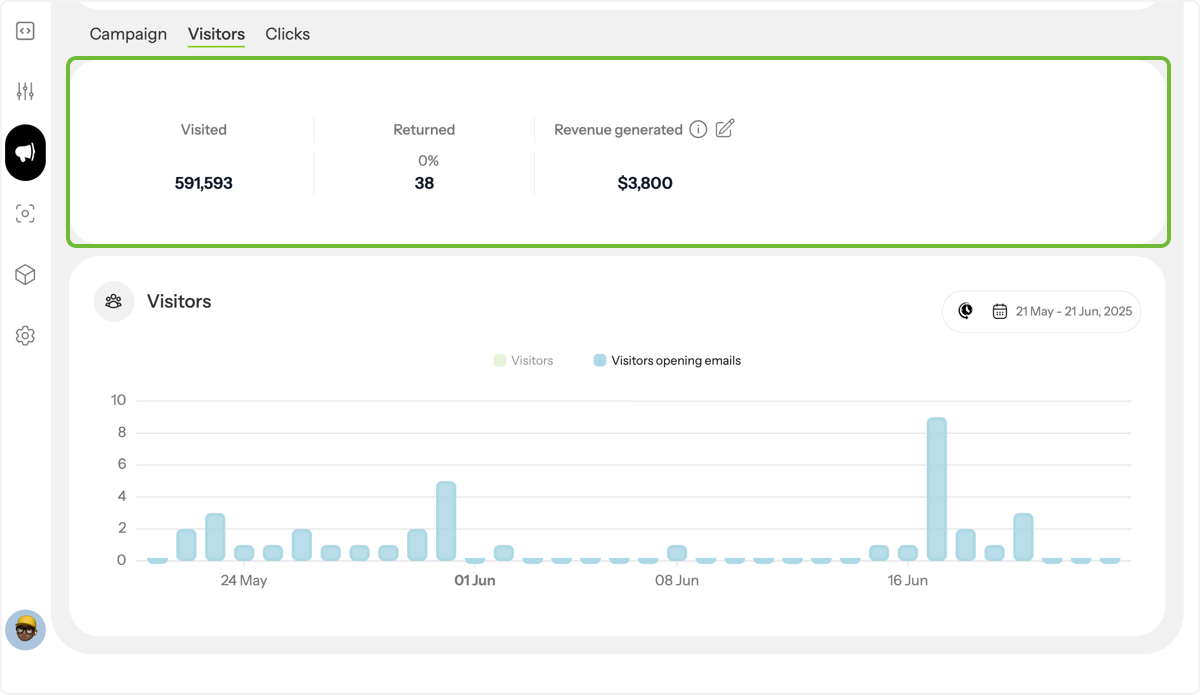
Here, you will see:
- How many customers visited
- How many returned after receiving the campaign
- The estimated revenue generated
Adjust Spend for Accuracy
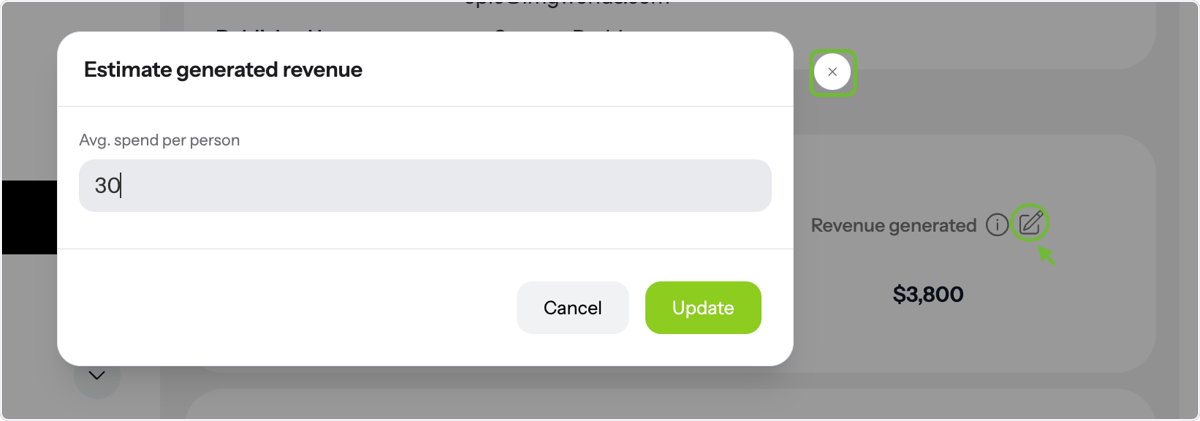
To refine your ROI calculation, click Edit next to the revenue figure. You can update the average spend amount to reflect more accurate customer behavior and see updated revenue results instantly.